Introduction
Design
Prototype
Usability
Presentation
Conclusions
References
|
|
Usability
Improving Usability
Many usability enhancements that were not considered upon inception were implemented as the project progressed throughout the year. Major features included:
- Multiple Selection tool permits users to manipulate multiple collage pieces simultaneously
- A single Transform tool that amalgamated the translate, scale and rotate functions that were initially separate
- Freeze and Unfreeze tools provide users more control over the automation process
- Multiple slider controls allowing users to specify the degree of randomness applied to an automated photocollage
- Rather than keeping the automated photocollage static on the canvas, users can manipulate collage pieces as they would with photocollage created manually, as well as add pieces of their own
- In addition to the Layer Up and Layer Down tools, provide tools to move a piece to top-most or bottom-most layer in a single click
- Border Thickness specifications that a user can apply to every collage piece in the canvas
- Work-in-progress can be saved as a Photocollage (.pc) format so that users can continue editing from where they last left off
Photocollage System In Use
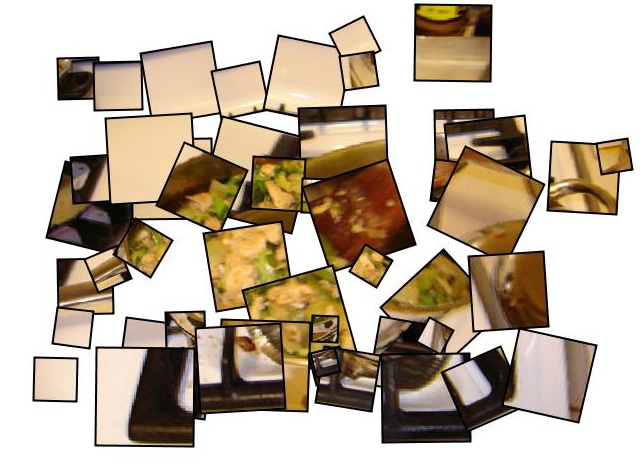 |
Auto collage
Randomness settings set at default
Adjusted border thickness
|
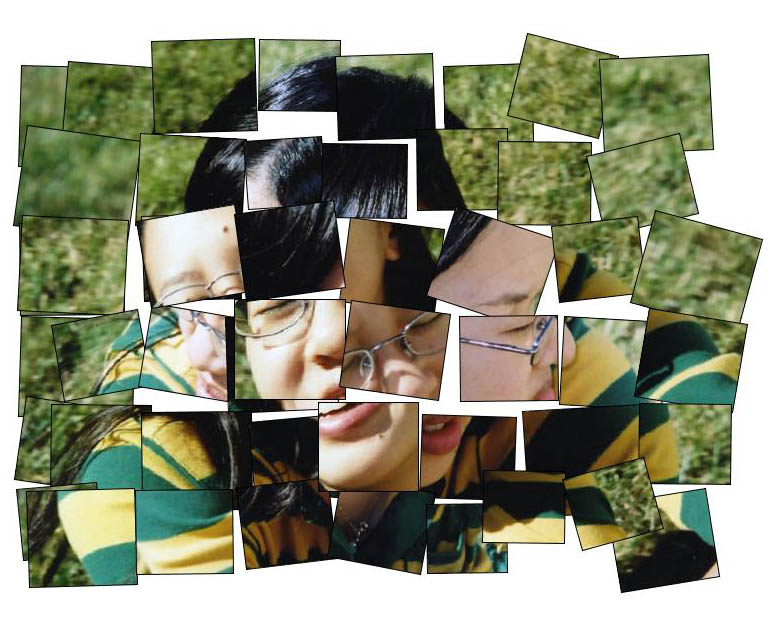 |
Auto collage
Low orientation and scale randomness
Added own pieces into collage
|
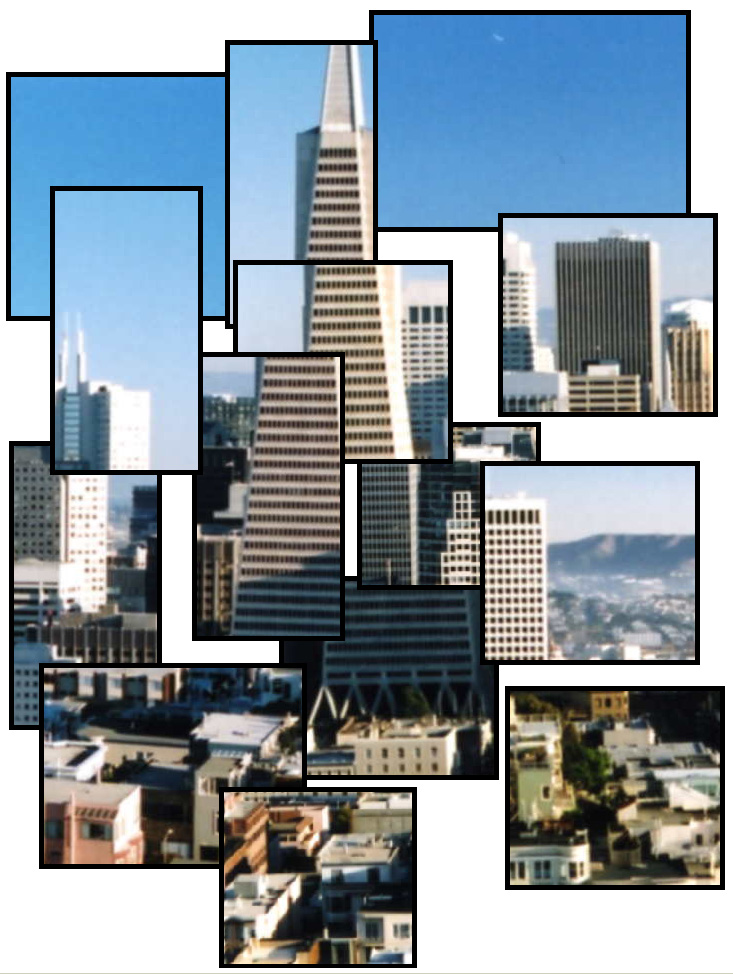 |
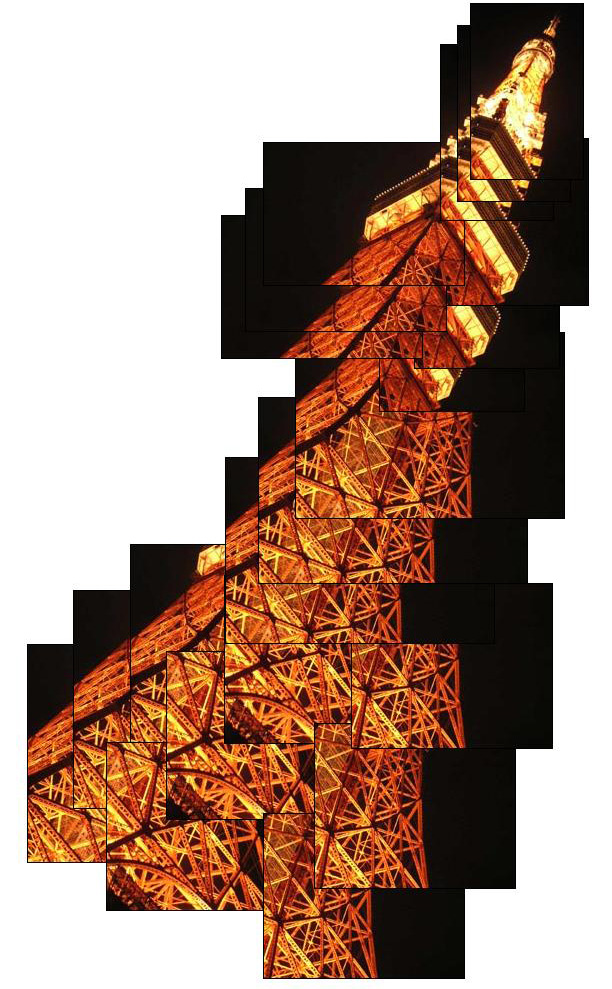
Manual collage
Adjusted border thickness
Transformations: translation, scale & hide/reveal
|
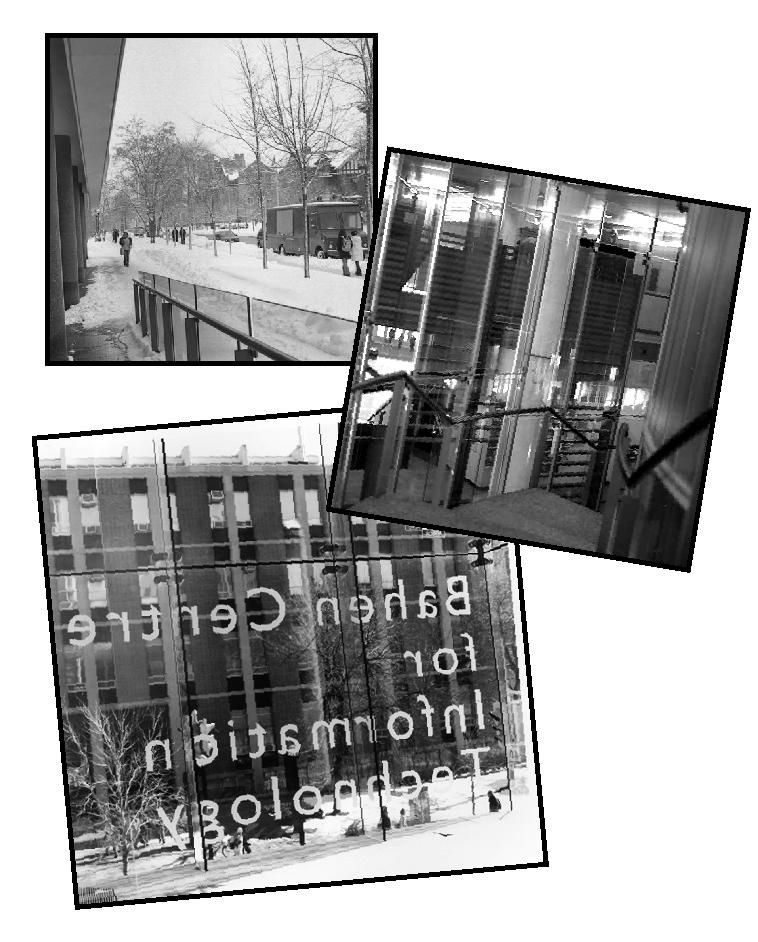 |
Manual collage
Photomontage style
Collage of entire images
Transformations: translation, scale, rotate & hide/reveal
|
 |
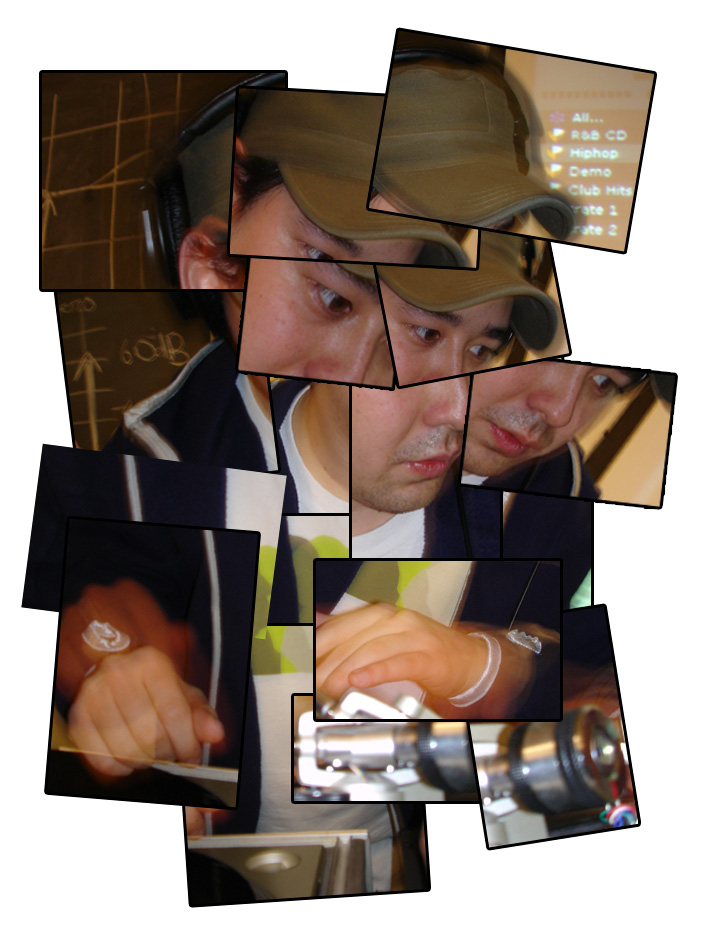
Manual collage
Transformations: translation & hide/reveal
Copy & Paste
|
 |
 |
|
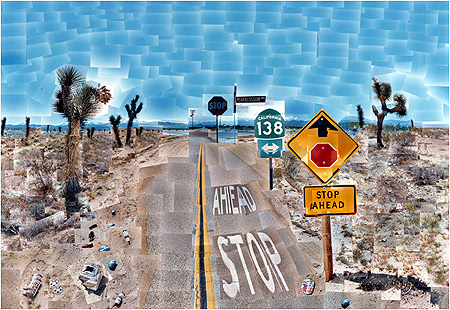
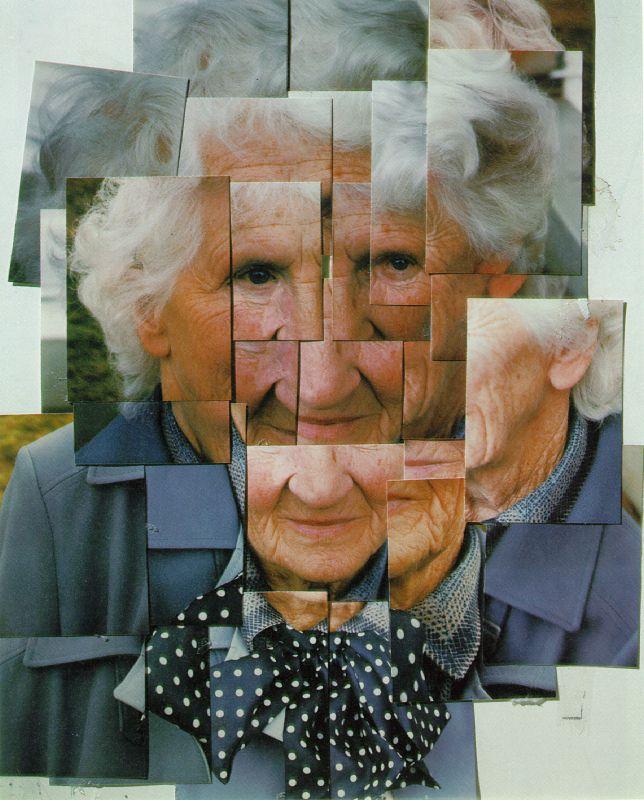
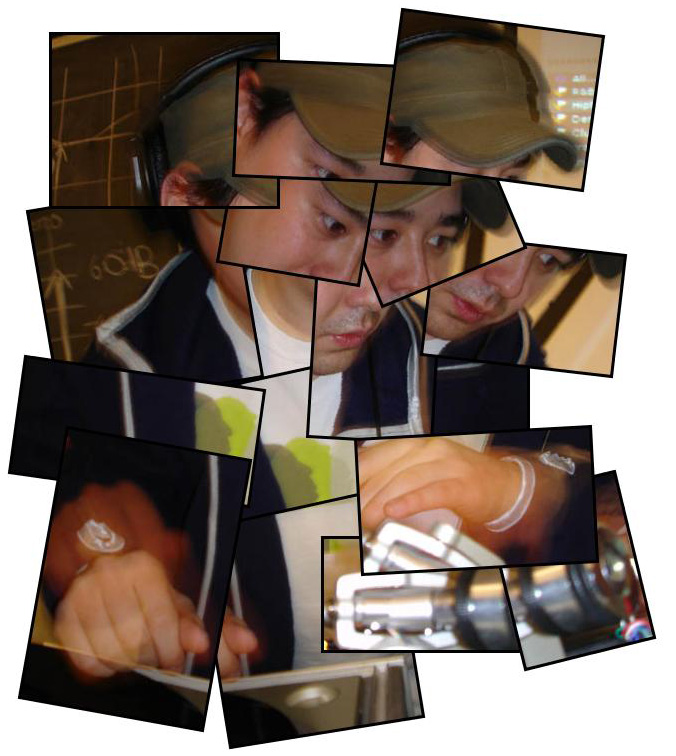
Portrait of the Artists’ Mother
By David Hockney
|
Portrait of the Artists' Sister
Style of David Hockney’s work
|
 |
|
|
Using Photoshop
(30 minutes)
|
Using Photocollage System
(15 minutes)
|
Photoshop Comparison
Disadvantages:
- Must keep jumping between windows to grab pieces from various image sources
- Use marquee tool to select area, then must copy and paste into the new canvas- if the selected does not fit well with the collage, the user must go back to the source to re-select a new area
- User can specify borders around each segment but must apply it for each individual image (requires menu navigation)
- Sometimes pastes images underneath other layers so that the user can't see where the image was pasted
- Hard to navigate through the list of layers- need to click on each piece to figure out the layer then drag and drop the layer in the desired position (lot of guess work)
Advantages
- Can make layer contents invisible without moving or deleting them
- Can add drop shadows to give impression of depth
- Can change image properties: opacity, colour, etc.
Results
- Photocollages created in a short amount of time using the Photocollage System
- Drag and drop from scrapbox afforded easy selection of pieces to use in canvas
- Hide/Reveal tool was the most useful- user not constrained by segment dimensions and do not have to change gridding constantly to get the perfect piece
- Copy and paste tools not very useful in general- photocollages usually employ unique pieces
- Auto collage function does all the work for the user but is extremely flexible - does not restrict user to that exact collage and allows for modifications
Limitations
- Cannot autocollage images of different gridding patterns
- Marquee tool would be useful in multiple selections instead of clicking on each segment
- Unable to scale or rotate a multiple selection of images
- Workspace only allows for one photocollage session at a time
- Cannot select multiple pieces from thumbnails to drag to canvas
|